
QR Code Alarm Clock: How to Force Yourself Out of Bed With a Code You Scan
By the Alarmor founder · Sanora Technologies
·
A QR code alarm clock requires you to scan a specific, pre-registered QR code with your phone's camera before the alarm will stop. Because you place the code somewhere inconvenient — a bathroom mirror, a kitchen cupboard, the far side of the room — dismissing the alarm requires physically getting up and walking there, which is far harder to do half-asleep than tapping a snooze button.
The psychology of location-based dismissal
Most alarm-defeating tricks fail because they can be completed without leaving the bed, or without fully leaving a drowsy state. A QR code mission is different on both counts: the only way to silence the alarm is to physically travel to wherever you placed the code, using enough deliberate motor planning (getting up, navigating to a specific spot, aiming a camera) that it is difficult to execute on autopilot. Once you are standing up and walking around your home, the odds of falling back asleep drop dramatically compared to lying in bed after a screen tap — you have already crossed the single biggest barrier, which is getting vertical in the first place.
How to set up a QR code alarm mission
- Get a QR code. Our free printable QR code generator makes a unique one for you — or use any QR code you already own, like one on a product label or poster.
- Place it somewhere you have to get up and walk to reach: the bathroom, the kitchen, a shelf across the room.
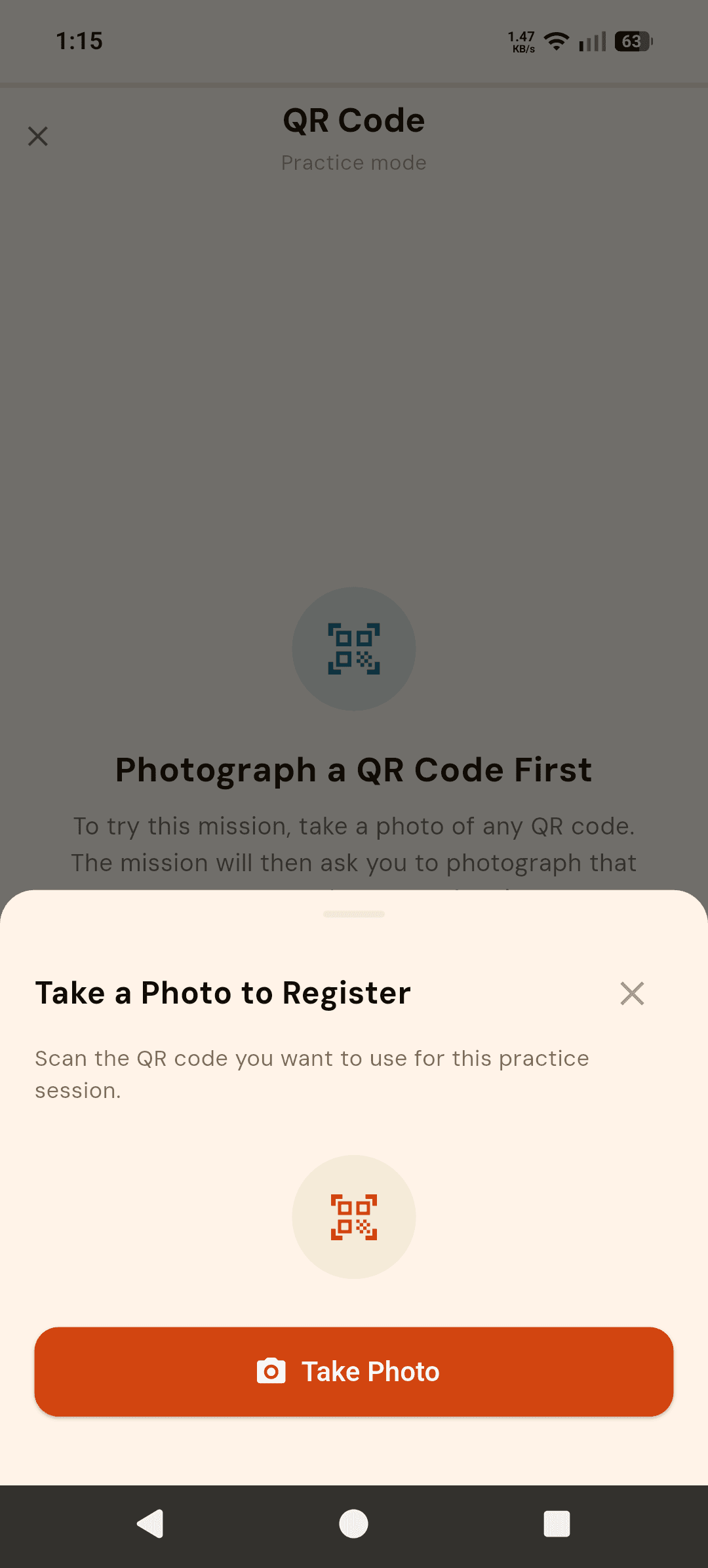
- In the alarm editor, set the mission to QR Code, tap "Take Photo to Register" and photograph the code. The alarm cannot be saved until a code is registered.
- When the alarm fires, the screen says "Photograph Your QR Code." Walk to that exact code and take a photo of it — any other QR code is rejected and the alarm keeps ringing.
Best practices for where to place your code
The placement matters more than almost anything else about this mission. A code taped to your nightstand defeats the purpose entirely — you want distance and, ideally, a change of environment.
- The bathroom mirror — combines the walk with a task you were going to do anyway, and the light and cold surfaces of a bathroom help with alertness
- A kitchen cupboard or the fridge door — often a longer walk than the bathroom, and puts you somewhere you can immediately follow up with a glass of water
- A different floor of the house, if you have stairs — the strongest option for genuinely heavy sleepers, since climbing stairs is difficult to do while still drowsy
- Avoid placing it anywhere reachable from bed, or anywhere you pass on the way to the bathroom you'd walk to anyway without needing to — the point is a deliberate destination, not an incidental one
Common setup mistakes
The two most common ways people undermine their own QR code mission: placing the code somewhere so close that the "walk" is three steps, and registering a code so poorly printed or lit that scanning it becomes frustrating rather than simply effortful. Print at a reasonable size, laminate or tape over it if it is going somewhere humid like a bathroom, and make sure the spot has enough ambient light (or a light switch within reach) that scanning it at 6am does not become its own obstacle.
QR Code vs. Barcode Scan
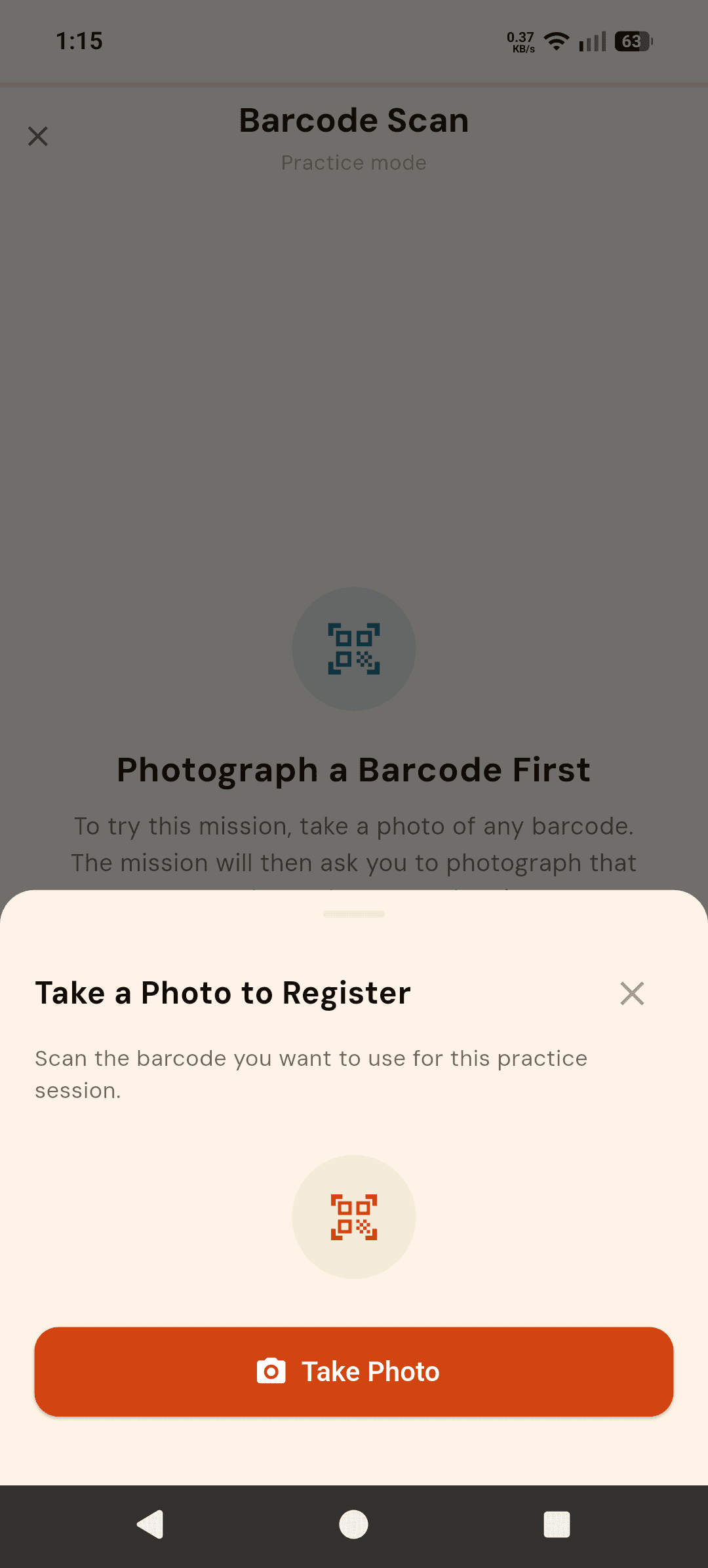
Alarmor offers two closely related Location missions. Barcode Scan uses any barcode already in your home — a cereal box, a book spine, a door tag — and is available on the free tier. QR Code requires a one-time Alarmor Pro unlock and works the same way but with a QR code you print or place yourself, which gives you more control over exactly where it ends up. Both force the same underlying behavior: get up, walk somewhere, and interact with a physical object before the alarm goes quiet.
QR Code vs. Word Hunt
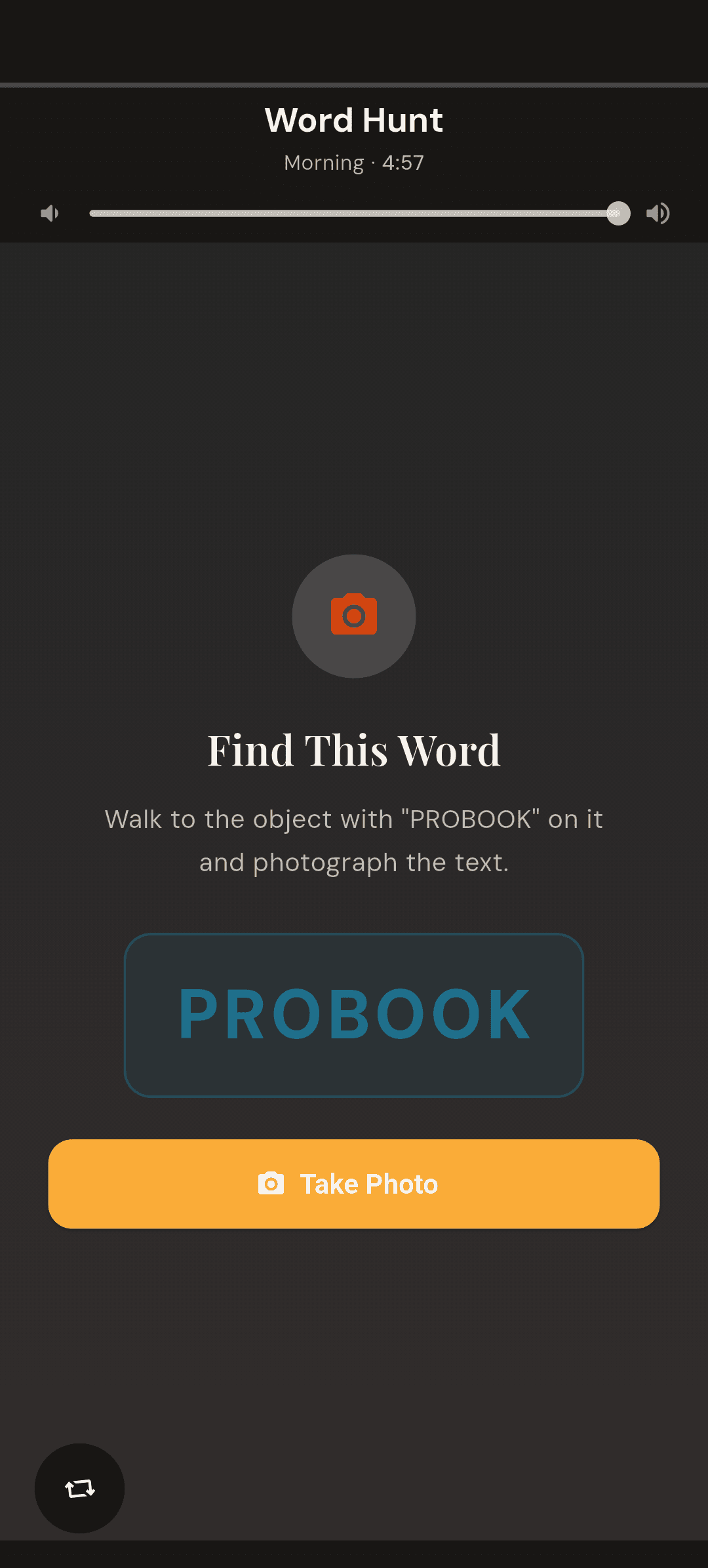
Word Hunt is Alarmor's third Location mission, and it raises the bar slightly higher than QR Code: instead of a code, you photograph printed text on any object in your home and the app reads and confirms the specific word you registered, entirely on-device. Where QR Code requires only that you reach and photograph a target, Word Hunt requires you to also frame and focus a photo well enough for on-device text recognition to succeed — a small amount of additional fine motor coordination that some people find pushes them further into wakefulness than a QR code alone.
What if I lose access to the code — travel, a broken printer, anything
Alarmor never traps you indefinitely. If the mission has not been completed after five minutes, the alarm dismisses automatically, and that wake-up is logged as incomplete in your stats rather than as a success — so you still have an honest record without being stuck fighting a code you cannot reach.
Frequently asked questions
Can I use any QR code for a QR code alarm?
You register one specific QR code when you set up the mission, and only that exact code will dismiss the alarm — any random QR code will not work, which prevents accidentally scanning the wrong thing and silencing the alarm too easily.
Where should I place my QR code for the best effect?
Somewhere that requires walking a meaningful distance and fully waking up to reach — a bathroom mirror, a kitchen cupboard, or a shelf across the room all work well. Avoid placing it somewhere reachable from bed, which defeats the purpose.
Is QR Code a free mission?
QR Code requires Alarmor Pro. The free tier includes Barcode Scan instead, which uses the same location-based principle with any barcode already in your home.
What happens if the lighting is too dark to scan the code?
Choose a spot with a light switch within reach, or one that gets natural light. A QR code mission works best when scanning it is only effortful, not genuinely difficult — poor lighting turns a good mission into a frustrating one rather than a wakefulness test.
Should I place multiple QR codes around the house?
Alarmor registers a single target code per mission setup, so you only need one well-placed code. If you want more variety over time, re-registering a new code and location periodically prevents the walk from becoming so routine that it stops requiring real attention.
Ready to fight back against the snooze button?
Get it on Google Play →